
How to clear data on Outcast

How to clear data on Outcast:
Sometimes, it is required for Users to have to clear data on the Outcast app. If the app is broken, or genuinely is not working, as a last resort you can clear the Data on Outcast. Doing this will basically clear everything on the app, and it will be like when you first ever installed Outcast onto your firestick or device, PLEASE NOTE: You will need your log in credentials to log back in after clearing data on Outcast.
Below, we will provide you with an easy to follow step by step guide on How to clear data on Outcast with screenshots to help you clear the data on Outcast with ease.
(1) On your firestick either press the home button on your Firestick remote for a few seconds, to access ‘Settings‘ or on the Firestick home page, simply click on ‘Settings‘ (As highlighted in the image below)
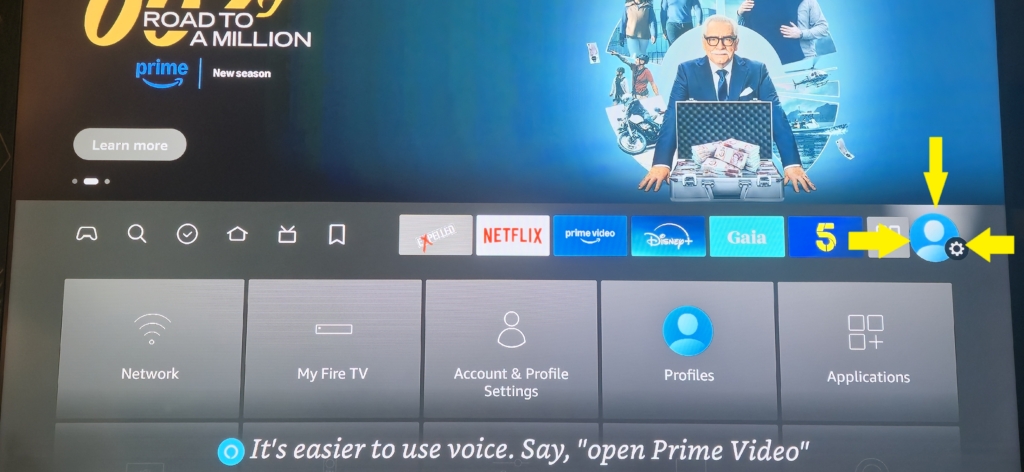
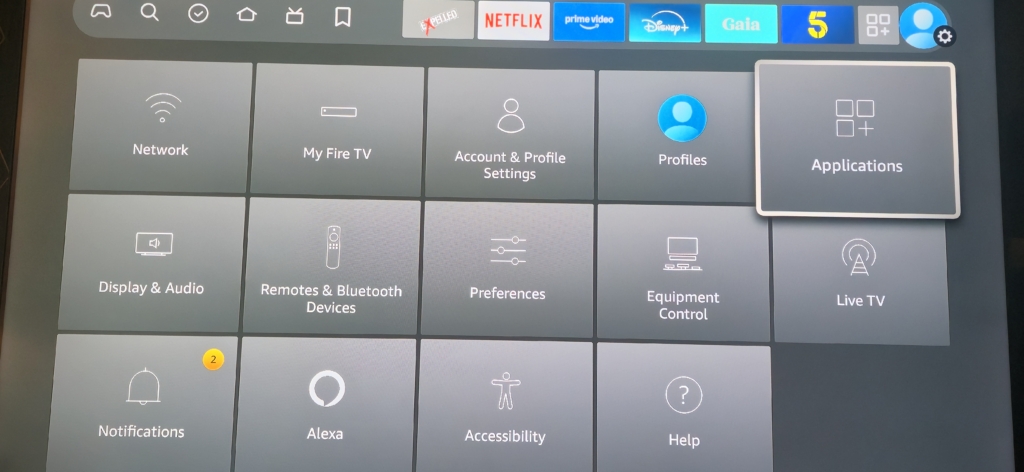
Once ‘Settings’ are open, click on Applications (As shown in the image below)
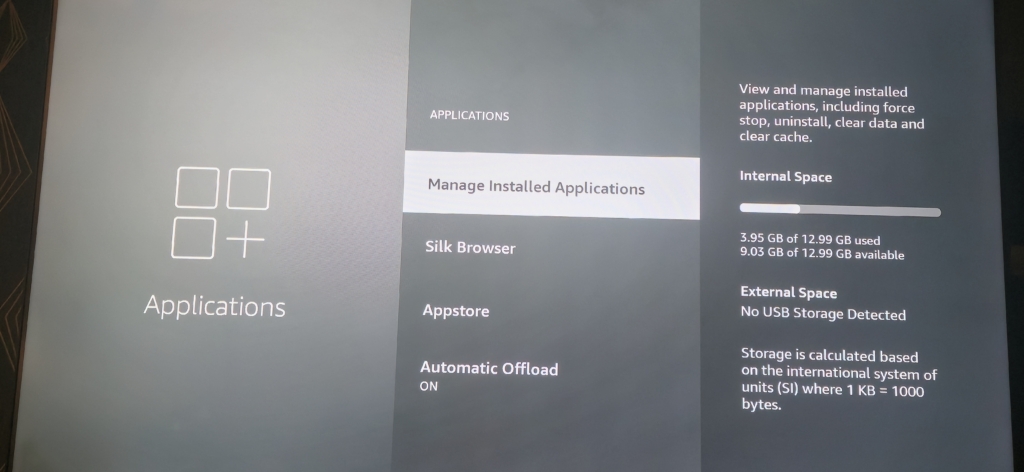
Now click on ‘MANAGE INSTALLED APPLICATIONS‘ (As shown below)
You will now see a list of your installed apps on your Firestick. Scroll down to Outcast or whichever app you’re currently using. (As shown in the image below)
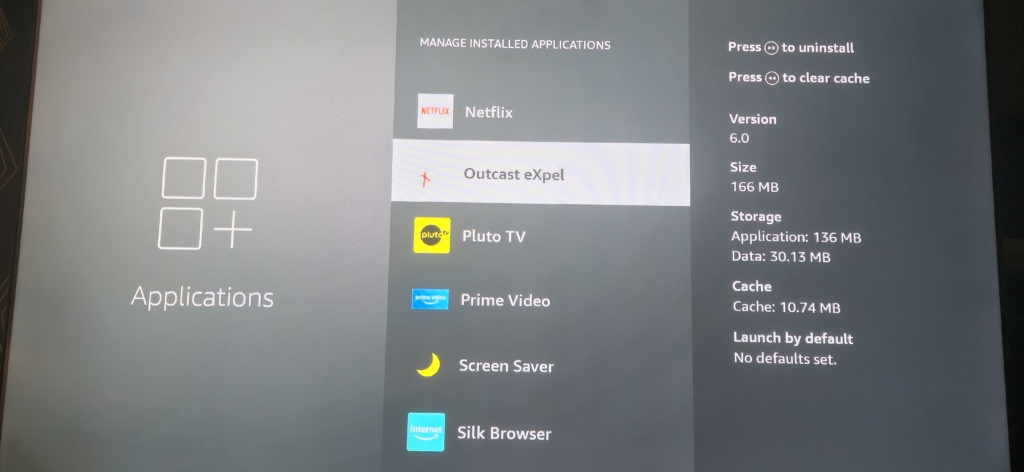
Select the Outcast or Whichever app you’re using. Then scroll down and click on ‘Clear Data‘ (As shown in the image below)
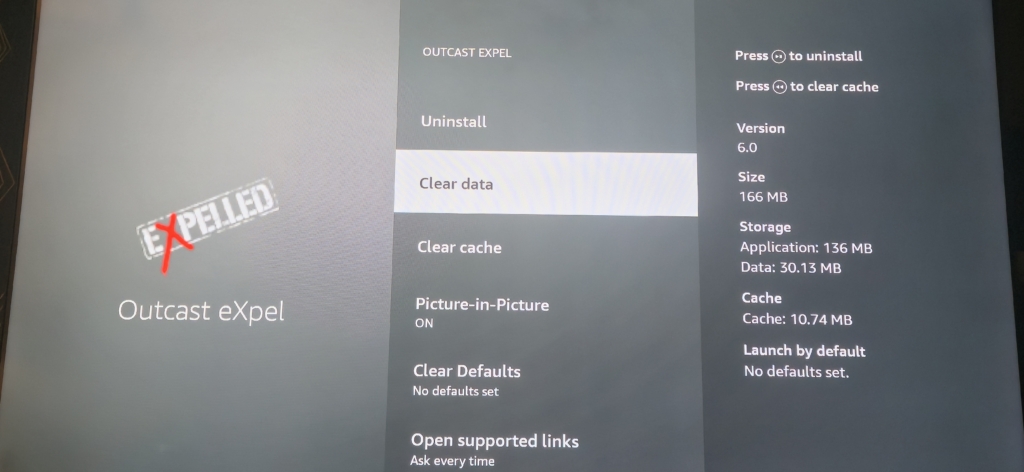
Now that you have cleared Data, you need to open the Outcast app.
Once you launch the app, you will see the panel screen option as shown in the image below:

Make sure that you select the ‘Outcast‘ option. (You should see a tick at the side of Outcast as shown in the image above.
Once you have done this, you will then see the login screen. (As shown below)

Enter your Username, and password that you was given. (Please make sure you enter the details exactly as they was given.) If you get anything from a cap lock letter, to a number wrong, it won’t let you in. SO PLEASE DOUBLE CHECK. (You can select the eye icon, in the password box, to help you double check your password.
Once you’re happy with everything, hit the ‘Sign In’ tab. (As shown below)

Outcast Expelled, will now load and update. Please allow a moment for the app to update Live TV, VOD, Series, and Guide… (As shown Below)

Once this quick process is done, you will then see an option to allow Outcast access. Simply click the ‘Allow‘ option. (As shown below)

Congratulations, you have now cleared Data on the Outcast Expelled app on your Firestick, device. This will fix any issues that you had.
we hope that this guide on How to clear data on Outcast has helped you.
Please remember to check our our brand new Outcast ‘How to’ guide section. Which can be found by clicking here
 Google