
How to stop buffering and lagging on Outcast

How to stop buffering and Lagging on Outcast:
This post explains how to prevent buffering and freezing issues on Outcast.
PLEASE NOTE: THE SAME APPLIES REGARDLESS OF WHICH APP YOU ARE USING. WHETHER THAT BE OUTCAST, ELVISION, OR ANY OTHER OF THE APPS. THE SETTINGS, AND SAME APPLIES, AND ONLY THE LAYOUT WILL BE DIFFERENT.
How to Stop Buffering and Freezing:
Here’s what to do when you experience buffering and freezing issues when streaming:
1. Turn off your modem for 60 seconds:
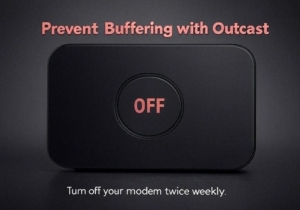
Outcast running smoothly also largely relies on your internet connection. Having a good internet speed to stream Outcast seamlessly is paramount. 90% of the time, buffering can easily be fixed, by simply turning off your modem.
The most common problem for lagging and buffering is due to your device building up Cache and data. Each time anyone in your household use mobile phones, TV’s, Firestick’s, consoles, or any other device which is connected to your modem, it builds up cache, data, and cookies onto that modem. From every website you visit, to social networks, images, even when the kids are gaming. It constantly adds more and more junk to your modem, which just builds up more and more cache and data. This then gets to a level where it will affect your streaming, and will start buffering, and lagging.
A very easy fix for this it to turn off your modem for 60 seconds, then turn your modem back on. This will clear all of that built up Cache and data, and more often than not fixes any buffering issues. Personally, I do this at least twice weekly. If you’re going out the house for a little while, just turn the modem off, then switch it back on when you return home. Otherwise, just turn the modem off for a minute or so, then switch it back on. It’s strongly advised to do this if relying on football, or live PPV events, before they start or kick off.
Always try this method before anything else, as this alone usually solves buffering problems. It’s always best to just regularly do this anyway, and not allow it to get to the level of it affecting how your services work, before turning off your modem.
2. Clear Cache on your Outcast App:
Another thing you can do, is to regularly clear the cache on your Outcast app. Below I will show you how to do this step by step. And to make it super simple, i will even add images for each step, so that people with even no tech knowledge can easily follow it:
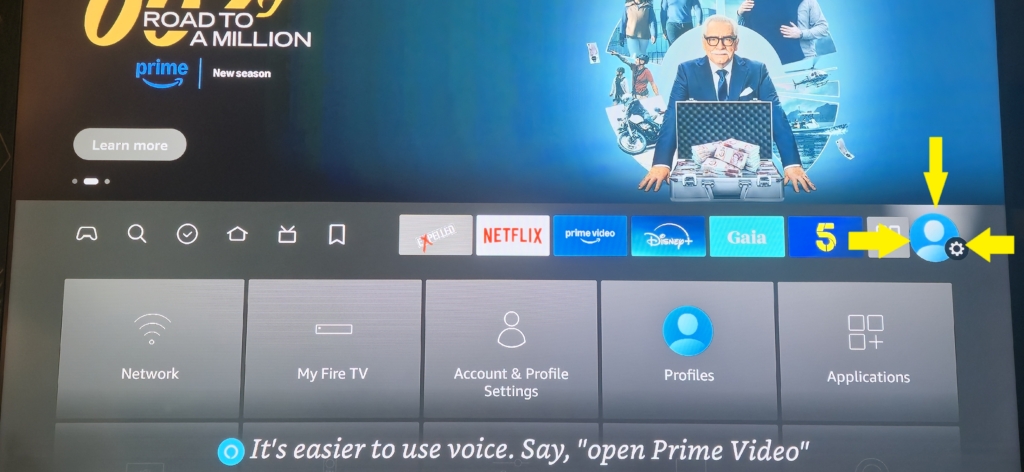
(1) On your firestick either press the home button on your Firestick remote for a few seconds, to access ‘Settings‘ or on the Firestick home page, simply click on ‘Settings‘ (As highlighted in the image below)
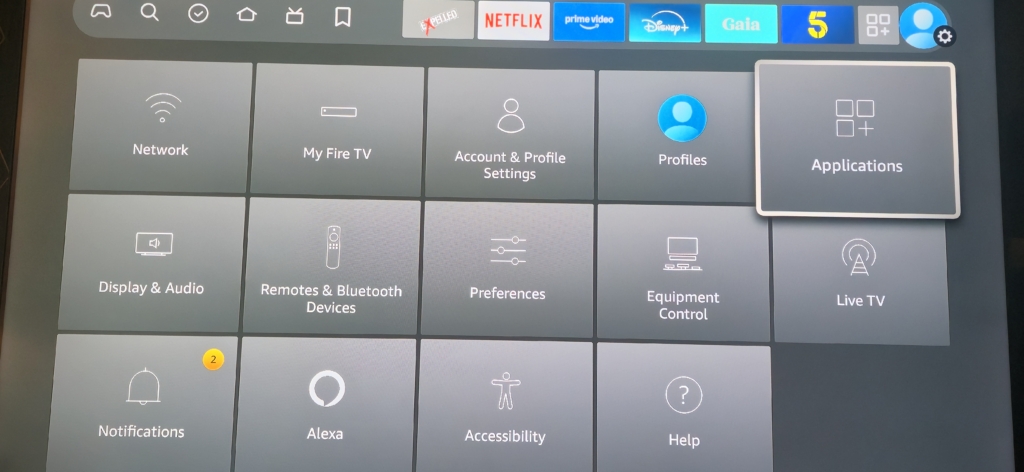
Once ‘Settings’ are open, click on Applications (As shown in the image below)
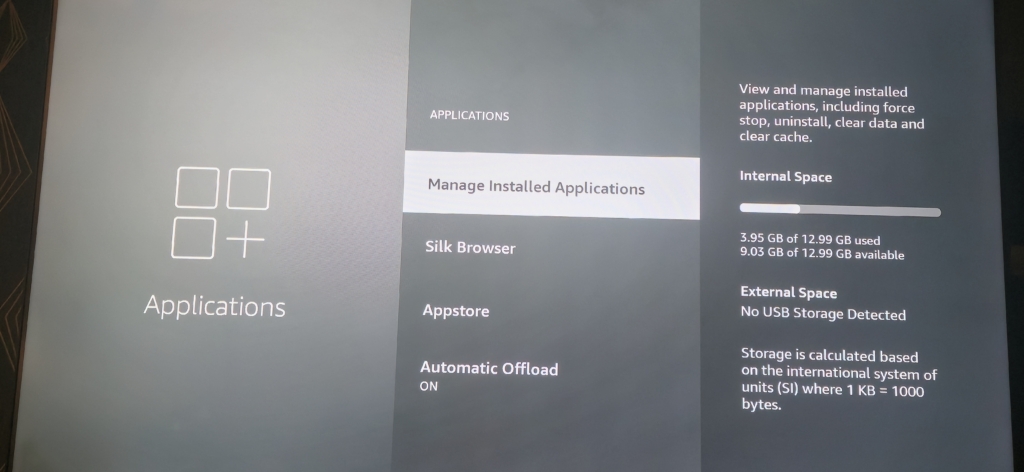
Now click on ‘MANAGE INSTALLED APPLICATIONS‘ (As shown below)
You will now see a list of your installed apps on your Firestick. Scroll down to Outcast or whichever app you’re currently using. (As shown in the image below)
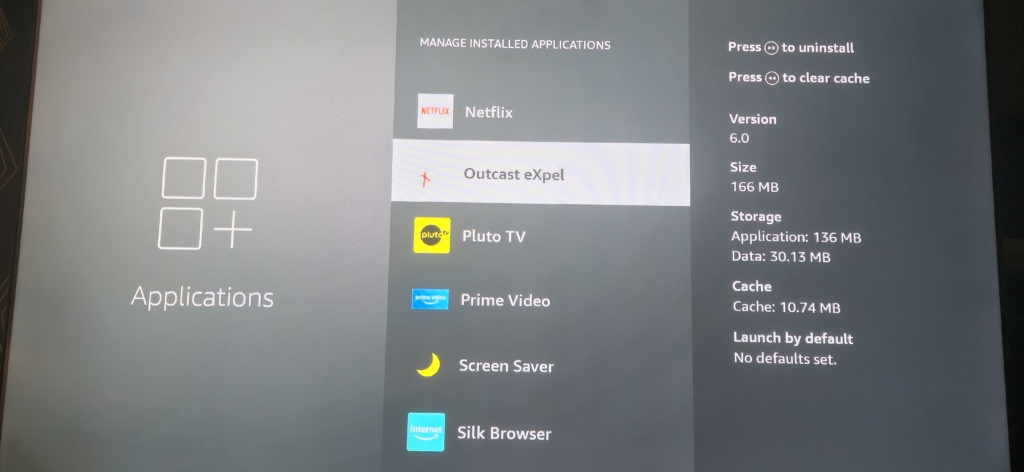
Select the Outcast or Whichever app you’re using. Then scroll down and click on ‘Clear Cache‘ (As shown in the image below)
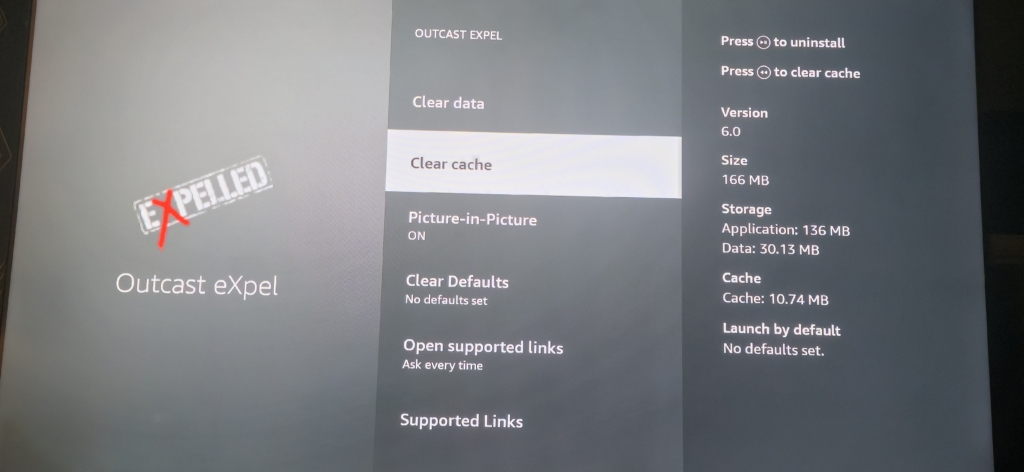
Congratulations.. You’re done! You have now cleared the cache on your Outcast/Elvision app.
I would also suggest that you check that all your players are set to EXO Player. (This literally takes seconds to do) Click here to take you to the super quick guide on how to check this.
As long as you regularly turn off your modem (As mentioned above, do this twice a week) And maybe clear Cache on the app once a week, this will keep the app running smoothly. If you still have any issues after this, then look to see if there is any unnecessary apps installed in the ‘Manage Installed apps’ and remove any apps you don’t use.
Below, is a list of more ‘how to’ guides, which are all extremely easy to follow, so that you can get the best out of Outcast. From how to fix volume issues, to simple tasks like selecting the correct player. Please note that it’s always best to check this page and following the guides, as it does usually fix any issues, and it’s likely that there is a easy to follow guide on here which will solve your issues We will try to cover everything for you.
We will even add images of every step just so that the people who are not tech savvy at all can even follow it. We are here to help. If you need to contact support, then please use the Telegram search function to see if others have experienced the same issue, as it’s likely to also solve your issue too.. (Please also check out our website, which has the latest Movie releases, aswel as all the best and latest TV Series available to stream. Insomniacs is totally FREE to use and is also AD-free, and provides all the information needed for your Movie and TV needs.
(Always check this page, before contacting Elvision support, as that will free up some time with the Admin and mods – Thank-You)
You might want to bookmark this page, as below we will be adding all of the easy to follow Outcast step by step guides, for easy access. Please check out the list below for more easy to follow guides.
Your Elvision step by step guides:
Please click on any of the lists below, to access that step by step guide:
- How to install Outcast onto your Firestick
- How to fix buffering/Lag and Clear Cache on Firestick.
- How to fix any volume issues on your Firestick.
- How to set the players on Outcast to EXO.
- How to clear Data on the Outcast app.
- How to watch PPV Boxing on Outcast
To access the guides, simply click on any of the above lists, and it will direct you to that step by step guide,
If you’ve tried the above guides, and you are still experiencing issues, then please check Outcast Support to see whether other users are facing the same issue. If there is issues regarding the app, it’s usually announced on the support group. (Please use the Telegram group search function)
If there is any step by step guides which you would like to see added to help you, then please just comment below, and we will get them added for you,
Thanks
The Insomniacs team.
 Google